
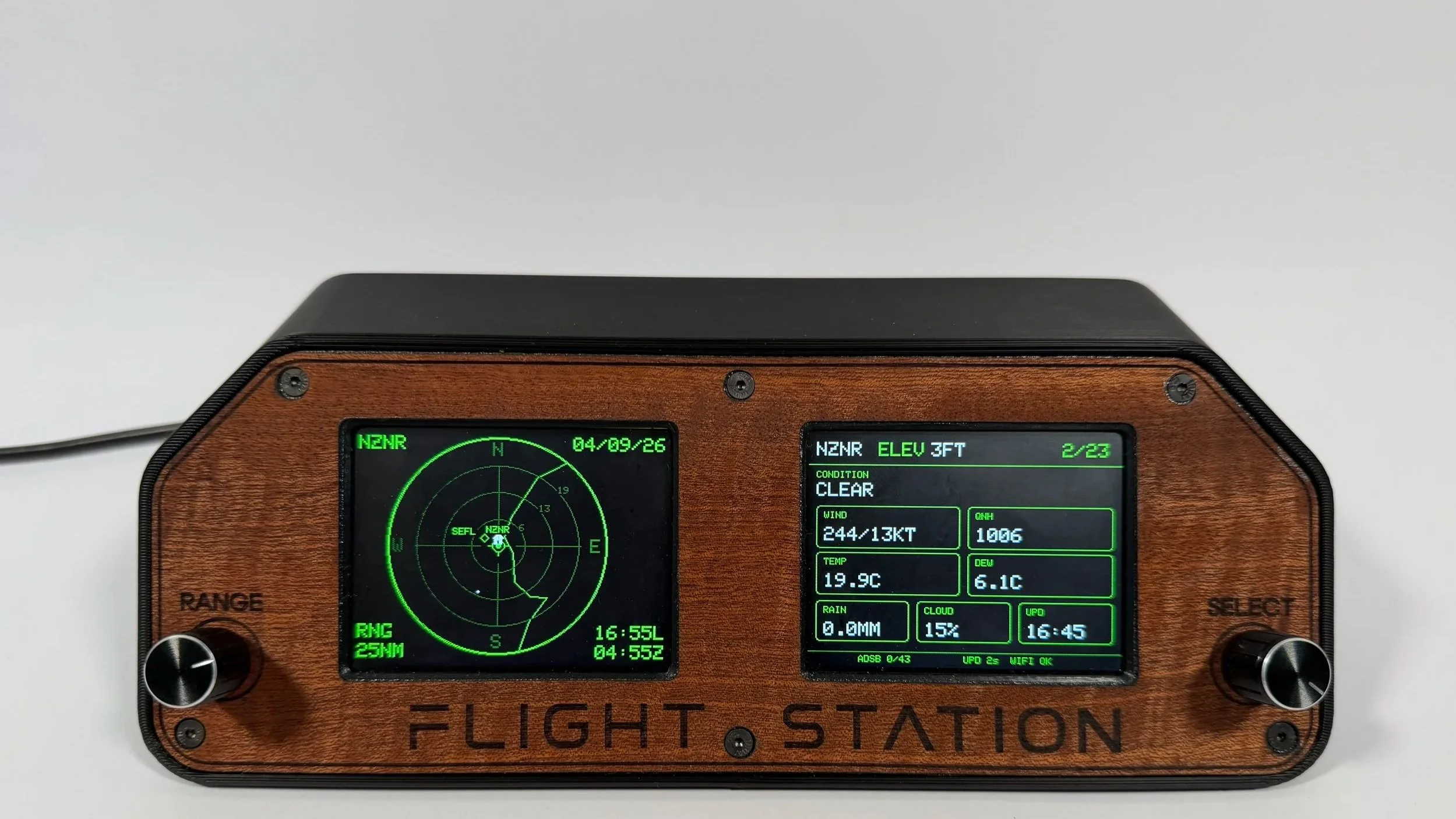
FLIGHT STATION TUTORIALS
Initial Setup
Get your Flight Station up and running for the first time. This video covers opening the captive portal, connecting your Flight Station to Wi-Fi, and walking through all of the available setup and configuration settings.
Note before setup
Before starting the initial setup, I recommend writing down the information you want to enter into your Flight Station. While connected directly to the Flight Station Wi-Fi network during setup, your device will not have internet access, so it’s useful to have everything ready beforehand.
Make a note of your exact Wi-Fi network name (SSID) — this is case-sensitive — and Wi-Fi password. If you plan to add custom locations or airports, also have their latitude and longitude ready, along with the ICAO code for any airports you want to add.
Flight Station supports up to 5 custom locations and 10 custom airports.
THE BASICS 2:40
Learn the physical controls, radar display, changing radar range and viewing airport weather.
TARGETS 1:26
View nearby aircraft, scroll through the target list and select an aircraft.
AIRCRAFT DETAILS 1:23
View detailed information about an aircraft and manually follow a selected aircraft.
AUTO FOLLOW 1:13
Set up saved callsigns and let Flight Station automatically detect and follow aircraft that matter to you.
SETTINGS 4:59
Work through Flight Station's settings and customise the unit to suit your setup.